Problem Description
Dropbox fails to launch and displays the following error dialog:
"Couldn't start Dropbox. This may be a temporary error. Please restart Dropbox."
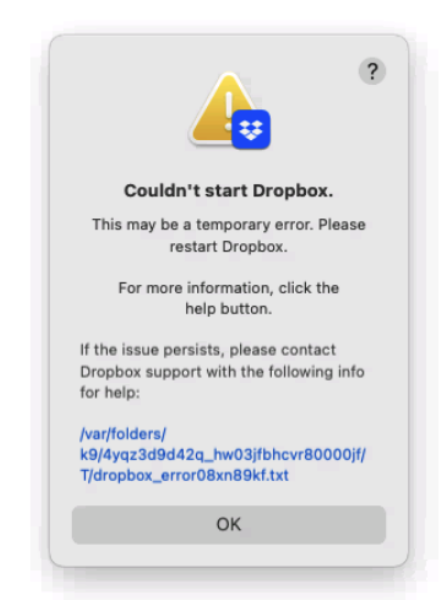
Restarting Dropbox does not resolve the issue. Reviewing the Dropbox log file referenced in the error (e.g. /var/folders/.../dropbox_error08xn89kf.txt) reveals the following underlying error:
dropbox.mac.internal.MacError: [Errno 260] Error Domain=NSCocoaErrorDomain Code=260 "The folder "E78C9B76-A1C0-4F43-9D99-19DCC9181604" doesn't exist." NSFilePath=/Users/<username>/Library/Application Support/FileProvider/<UUID>
Root Cause
macOS FileProvider requires a domain folder to be registered under ~/Library/Application Support/FileProvider/ before Dropbox can initialize its sync root. In MacInCloud shared server environments, this folder fails to be created because the FileProvider system extension cannot register properly, preventing Dropbox from completing its setup.
Solution
Opt out of Dropbox FileProvider during setup via Advanced Settings:
- Open Dropbox from the Dock or Applications folder.

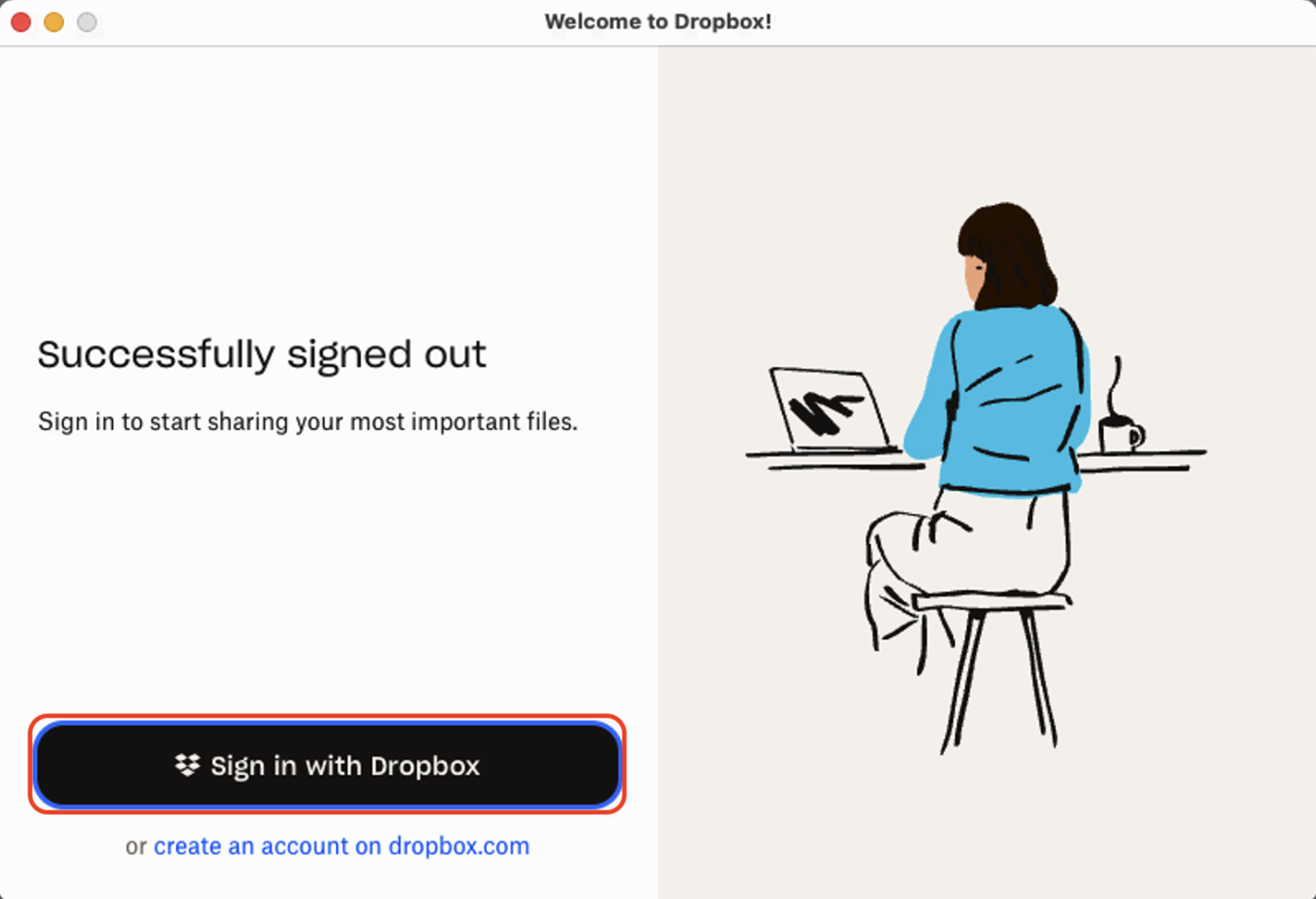
- A "Welcome to Dropbox" screen will appear - click Sign in with Dropbox and log in with your account.
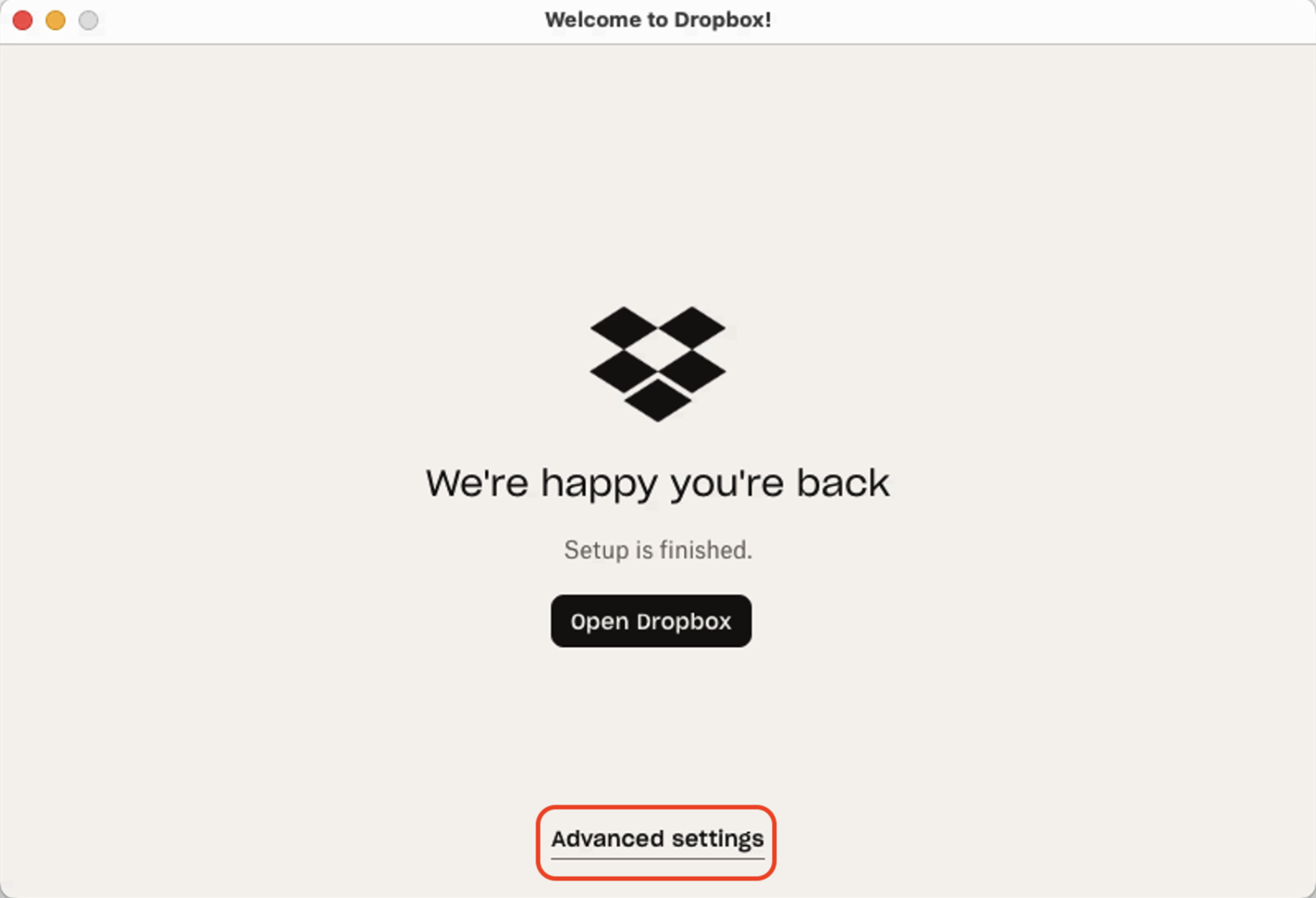
- Once signed in, you'll see a "We're happy you're back" screen - click Advanced settings at the bottom (do not click Open Dropbox).
- On the Advanced Settings screen, scroll down to Dropbox on File Provider and check the Opt out checkbox.
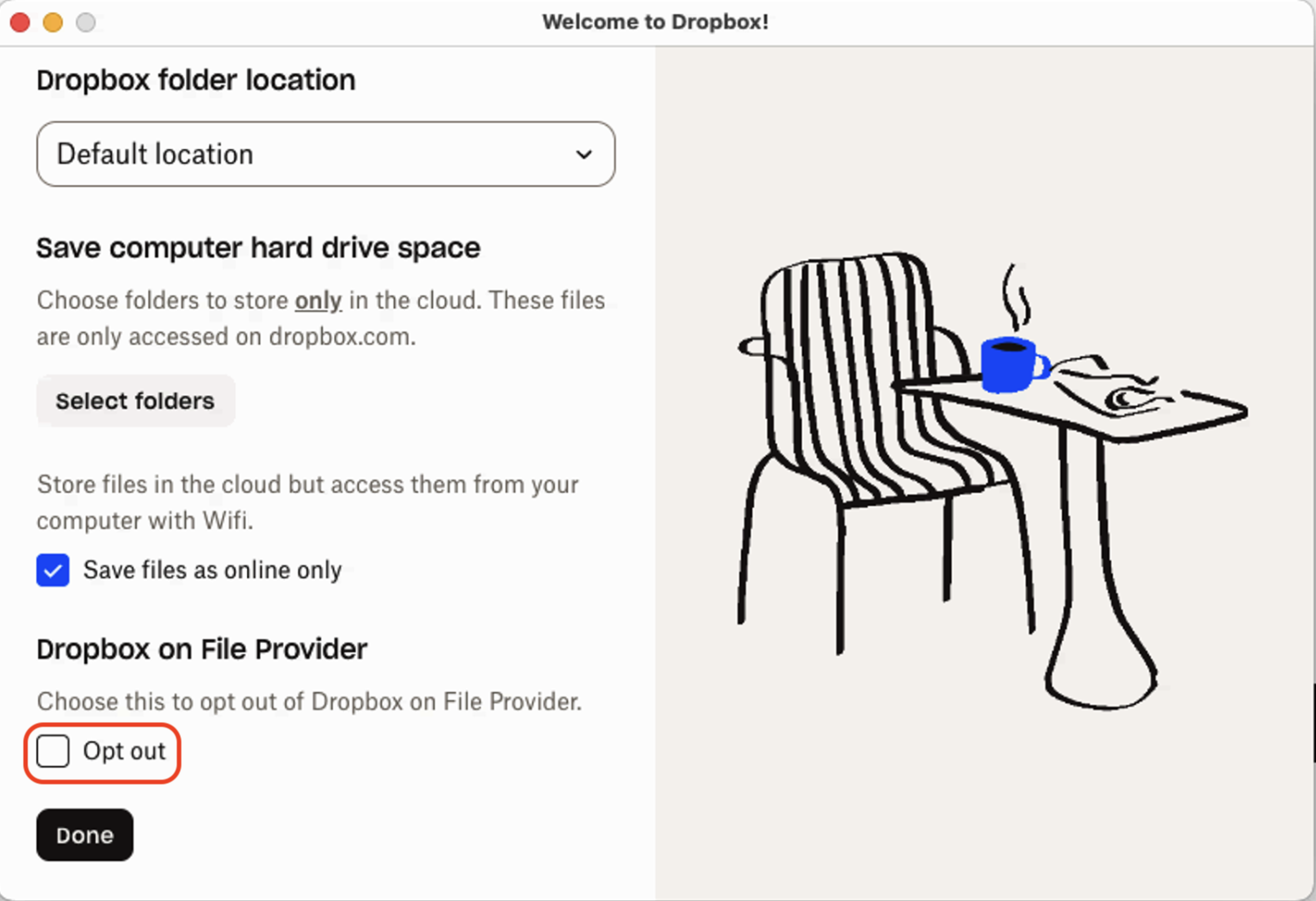
- Click Done.
Dropbox will complete setup without relying on the FileProvider extension and should sync normally.
Interested in MacinCloud Managed Servers?

Visit the Managed Server Plan page to obtain a Managed server.
Do you require full root/admin privileges on a MacinCloud Server?
Find out more about MacinCloud Dedicated Server Plans.